

How to change/reset your VPS Password
This guide will go over how you can change/reset your VPS password
Accessing the control panel
There's a few ways you can access the VPS control panel. The Getting Started guide will go over this in more detail, for the purpose of this guide you can click here to access the VPS control panel
Changing your password
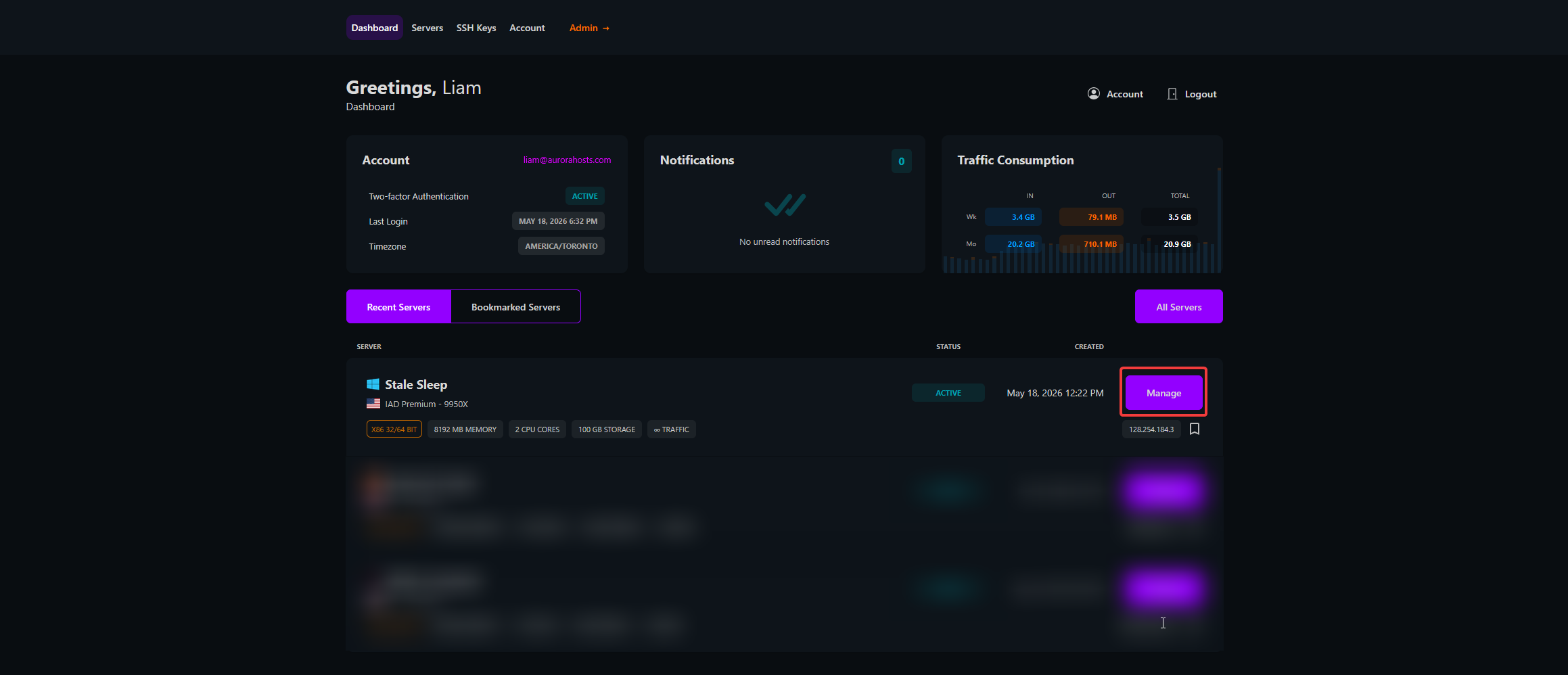
Click on Manage
Once you're signed into the control panel you'll see your VPS and the option to Manage it. Click Manage
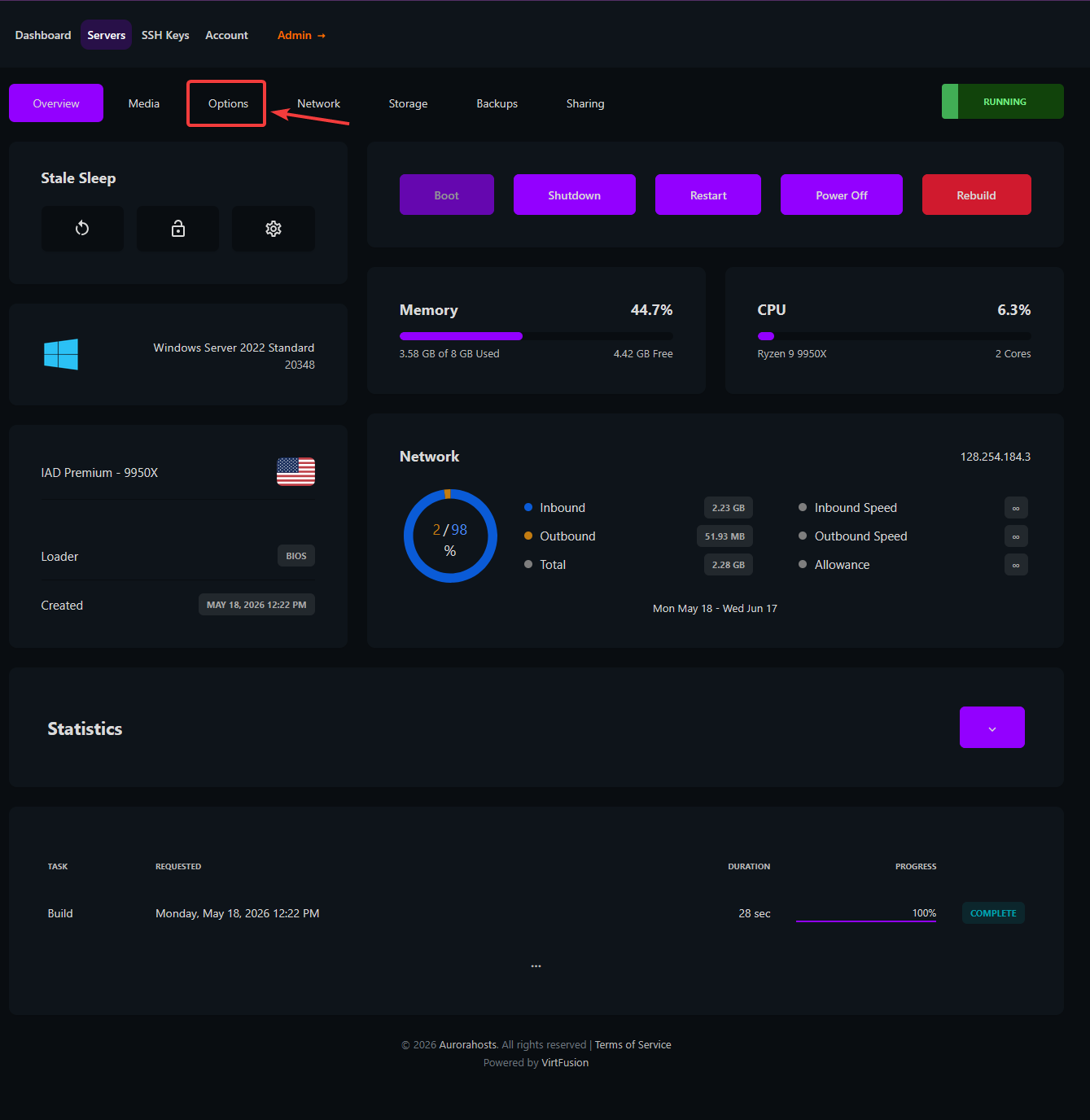
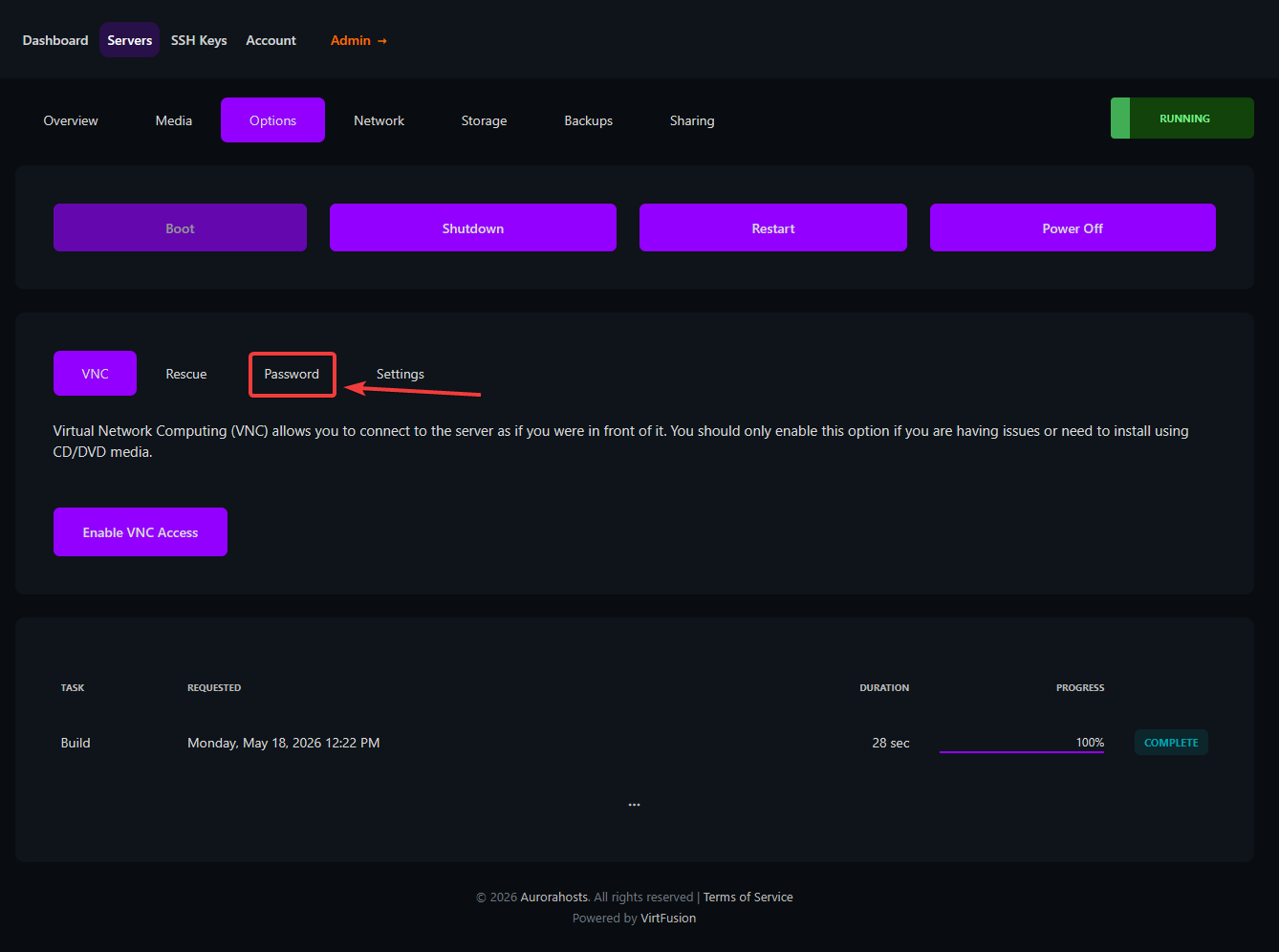
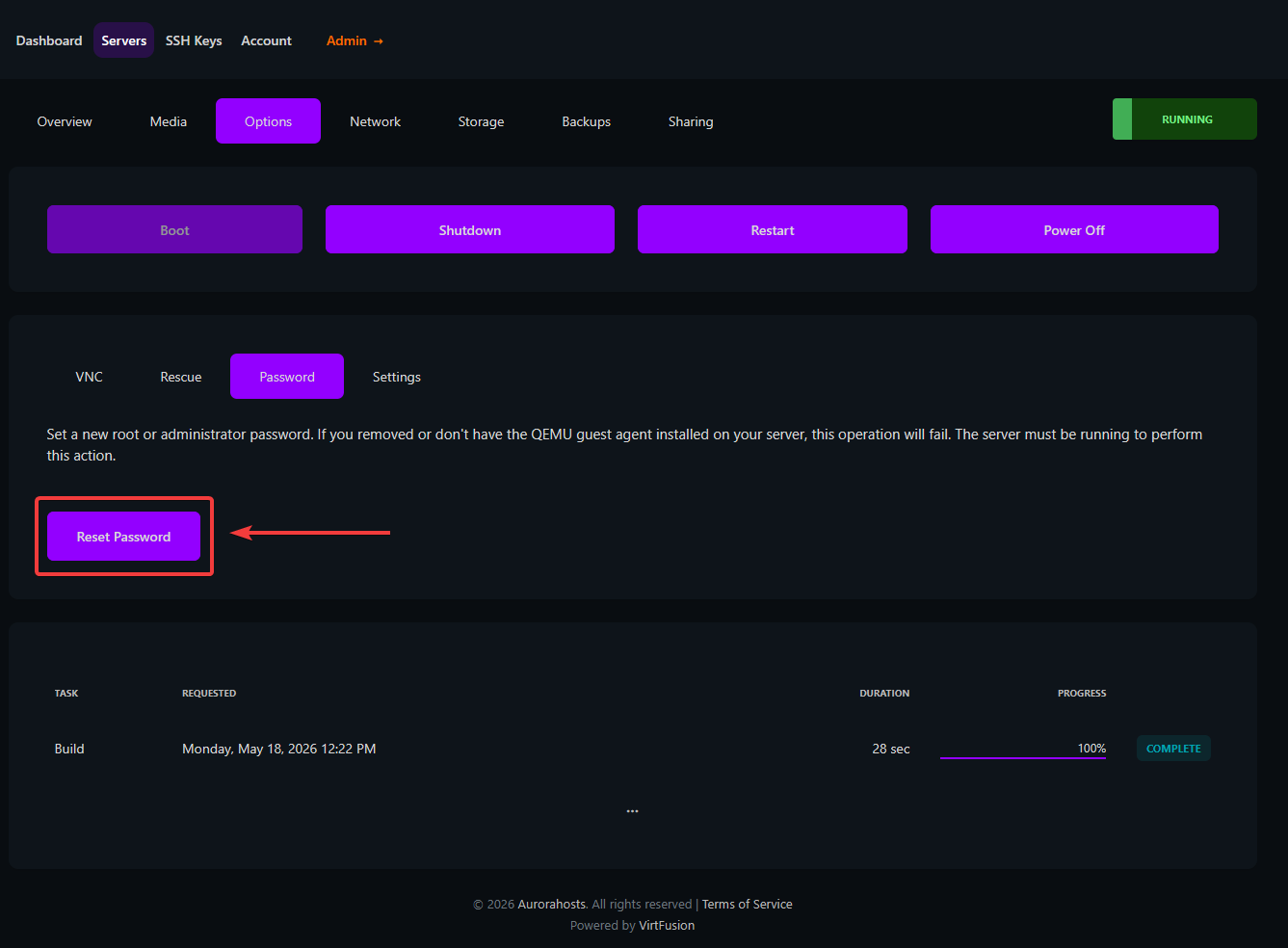
Reset your password
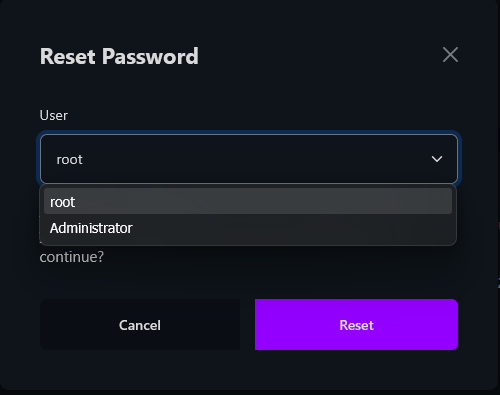
In this section there are two options.
- If you're using Windows select Administrator
- If you're using Linux select root
Failed reset
If you're using Windows and you've selected root the password reset will fail and vice-versa if you select Administrator and you're using Linux the password reset will fail
All done!
Once you've click reset you'll receive an email within 2-5 minutes with your new password. The password email will come from vps-no-reply@aurorahosts.com and will look like this:

Password reset failed
Password resets on Windows sometimes fail on their first try as the password generated doesn't always meet the specifications that Windows is looking for, if this happens follow the steps again and reset the password again.
Need help?
If your password reset is still failing it may indicate an issue with the QEMU agent, for this please open a ticket in the billing area or via our discord