
How to open ports on Windows
This guide will go through how to port forward applications on your Windows VPS
On Windows there are a few different ways to open ports for your applications, this guide will go over two methods.
Method 1 (Allowing the app via the firewall)
Open Control Panel
On your Windows VPS open the control panel.
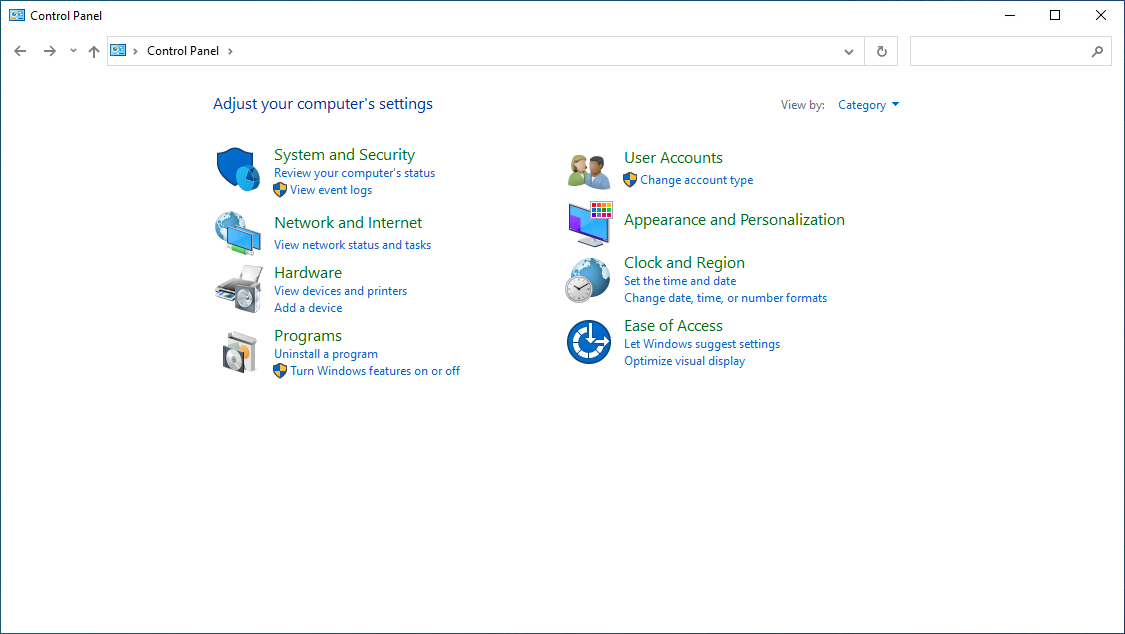
Getting to the firewall section
Once open lookup Firewall in the search bar and then select Allow an app through Windows Firewall
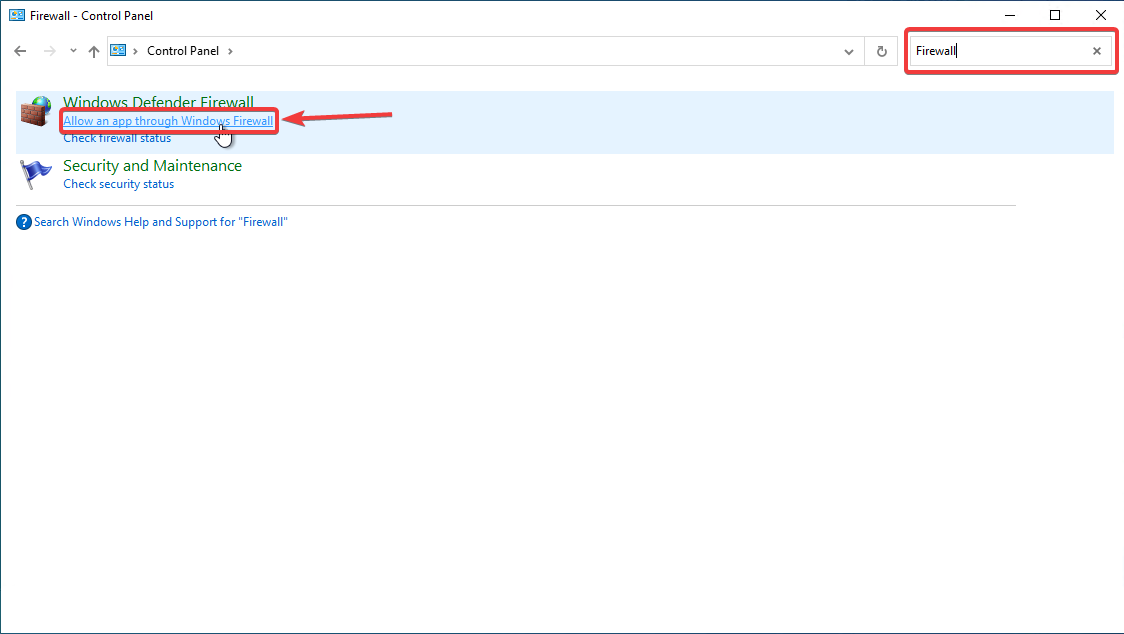
Allow an app through the firewall
In the bottom right click Allow another app
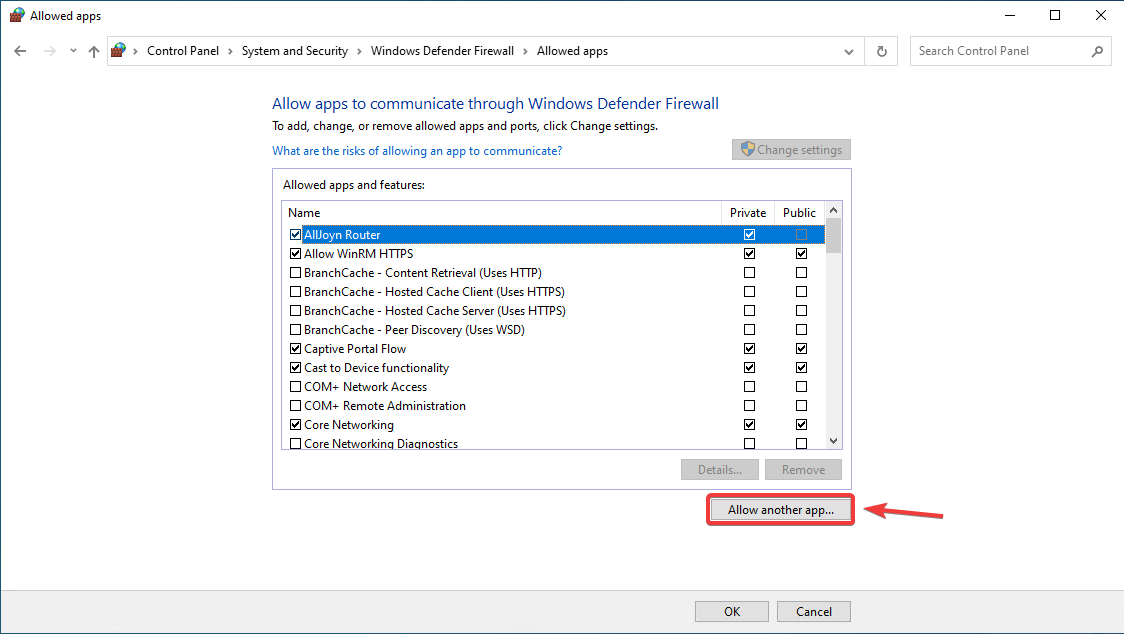
Add your application
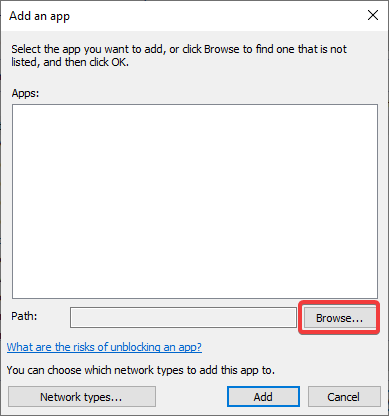
A pop up will appear, click Browse
Selecting your application
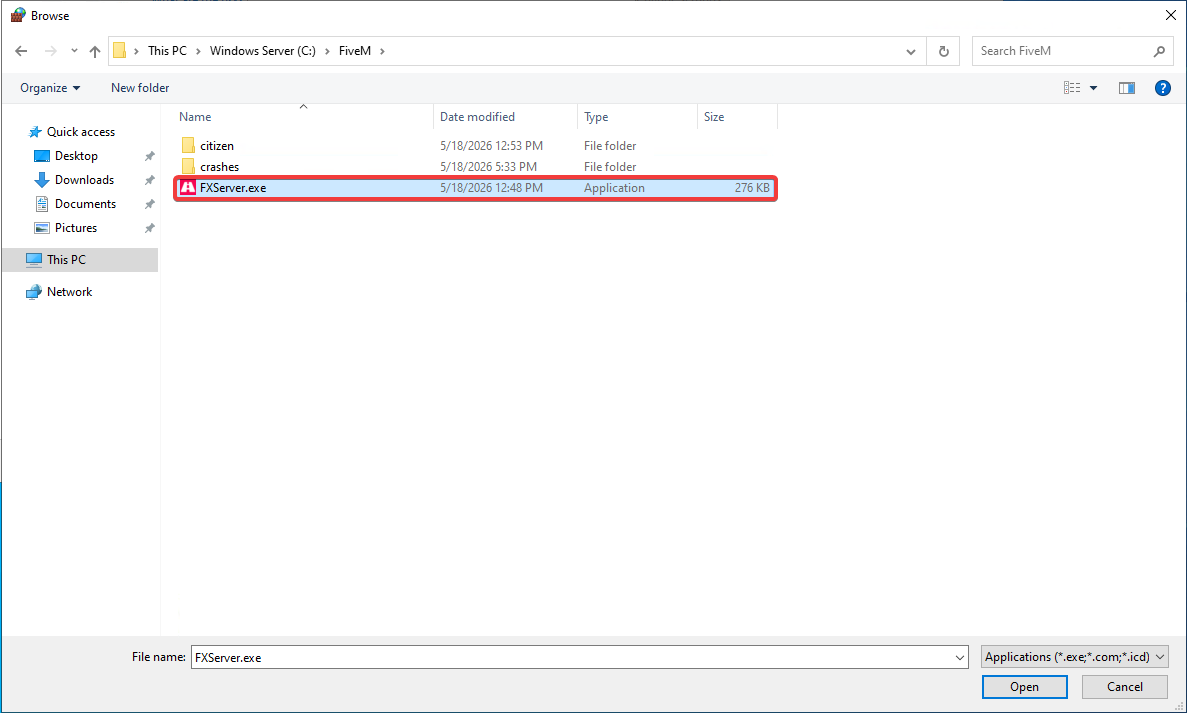
For the purpose of this guide we'll be allowing the FiveM server application (FXServer.exe) through our firewall. Once you've found your application, select it and click Open
Confirm your selection
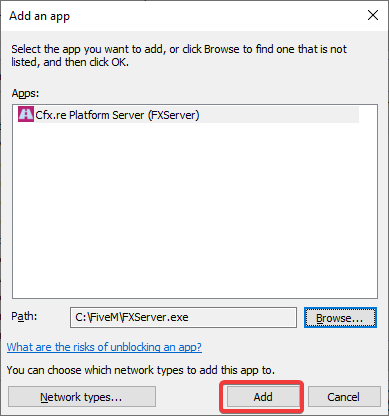
Once the application is selected click Add
All done!
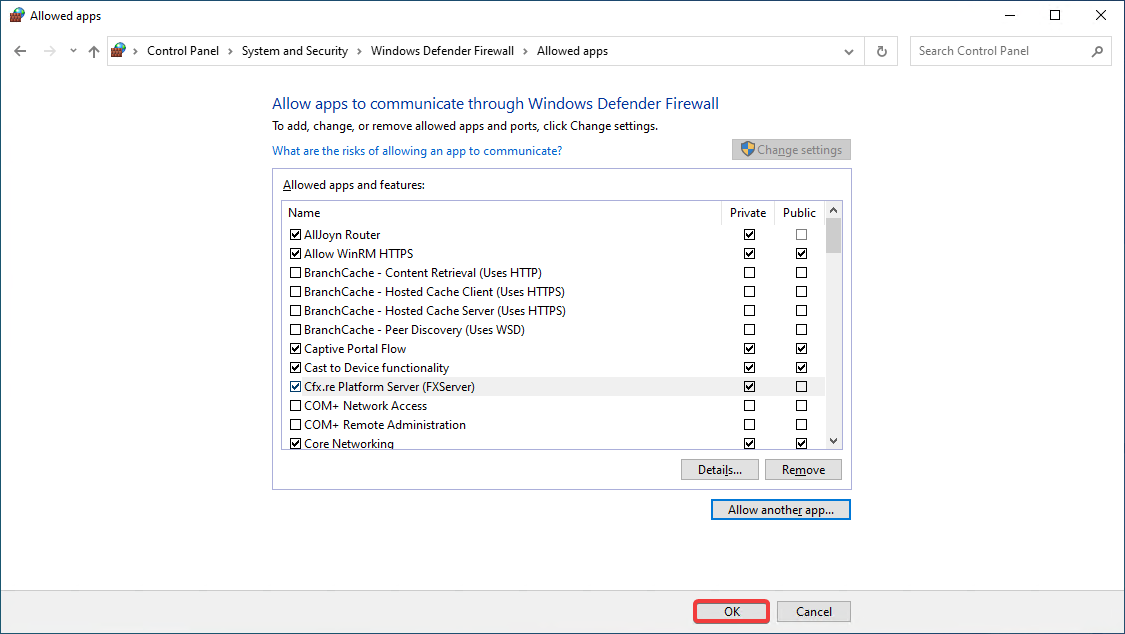
Now that you've selected your application make sure to click Ok and you're done! Your application is now port forwarded
Method 2 (Open via port number)
This method is the more traditional way of opening ports via the Windows Firewall Manager
Open the Windows Firewall Manager
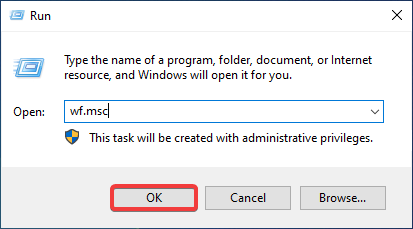
On your VPS press WIN + R and type wf.msc in the popup
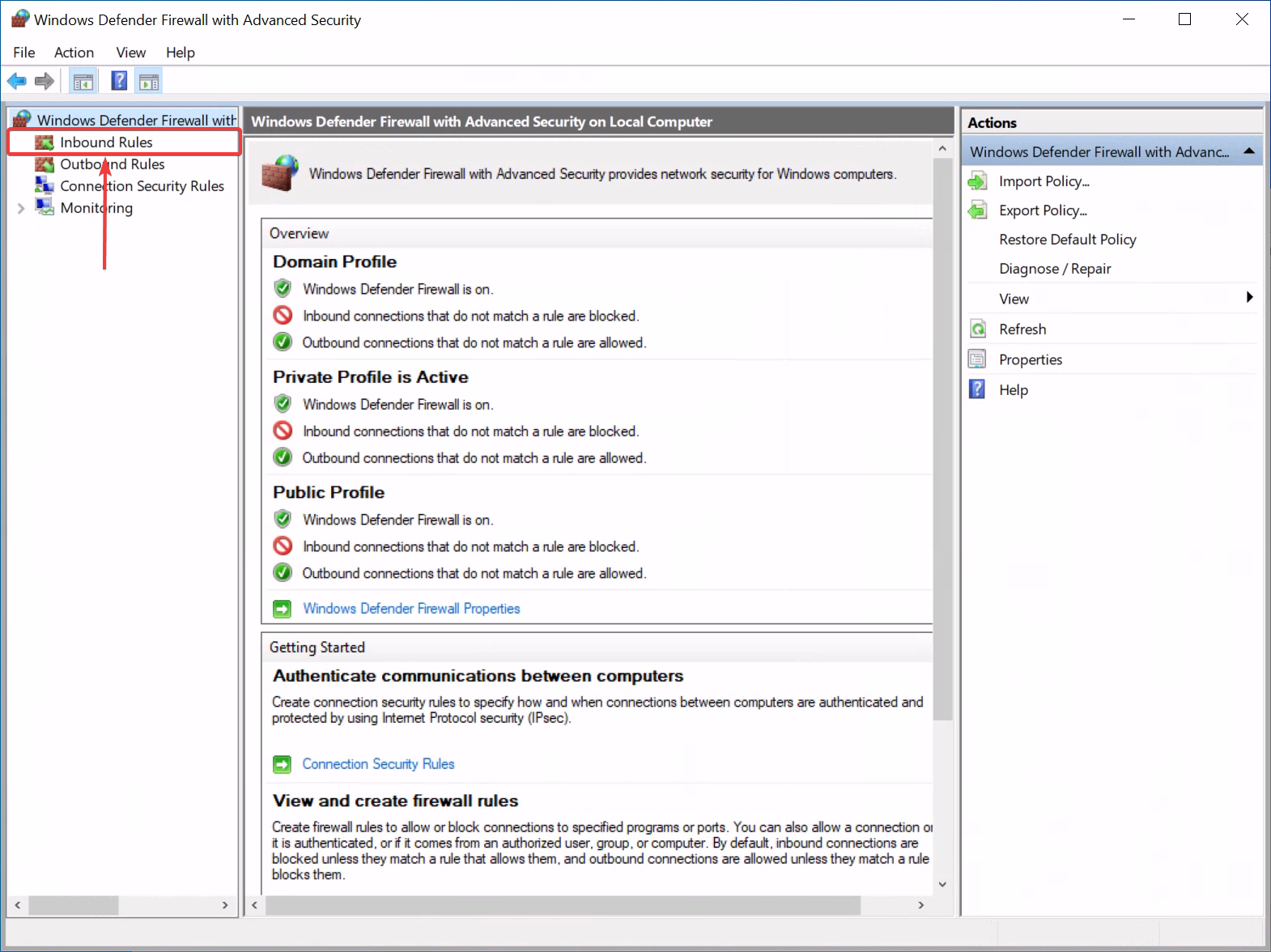
Click on Inbound rules
Once Windows Defender Firewall is open click on Inbound rules
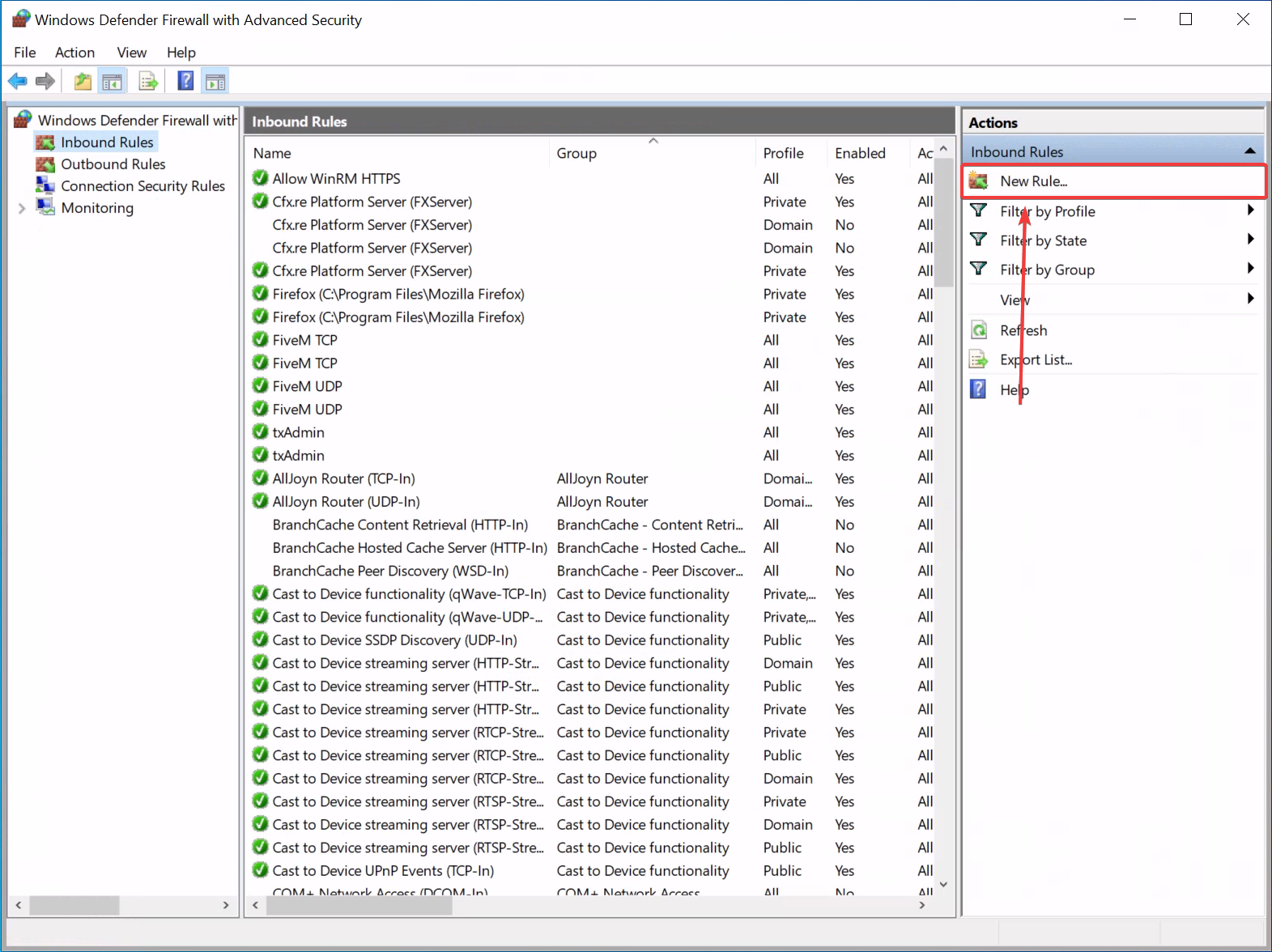
Click on New rule
In the inbound rules section on the right hand side click New Rule
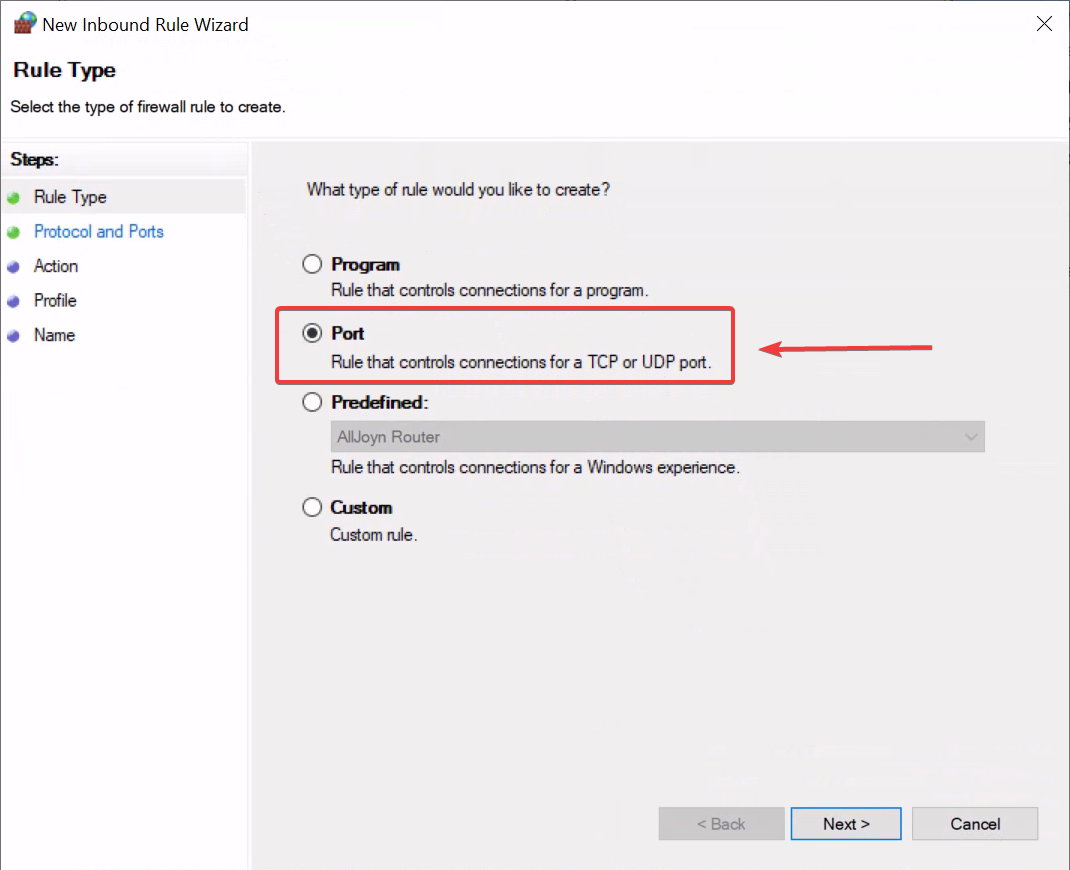
Click on port
Select the port option then click Next
Select your protocol and ports
Depending on the application you want to port forward you'll need to select a different protocol. For the purpose of this guide we will be opening the ports for a FiveM server
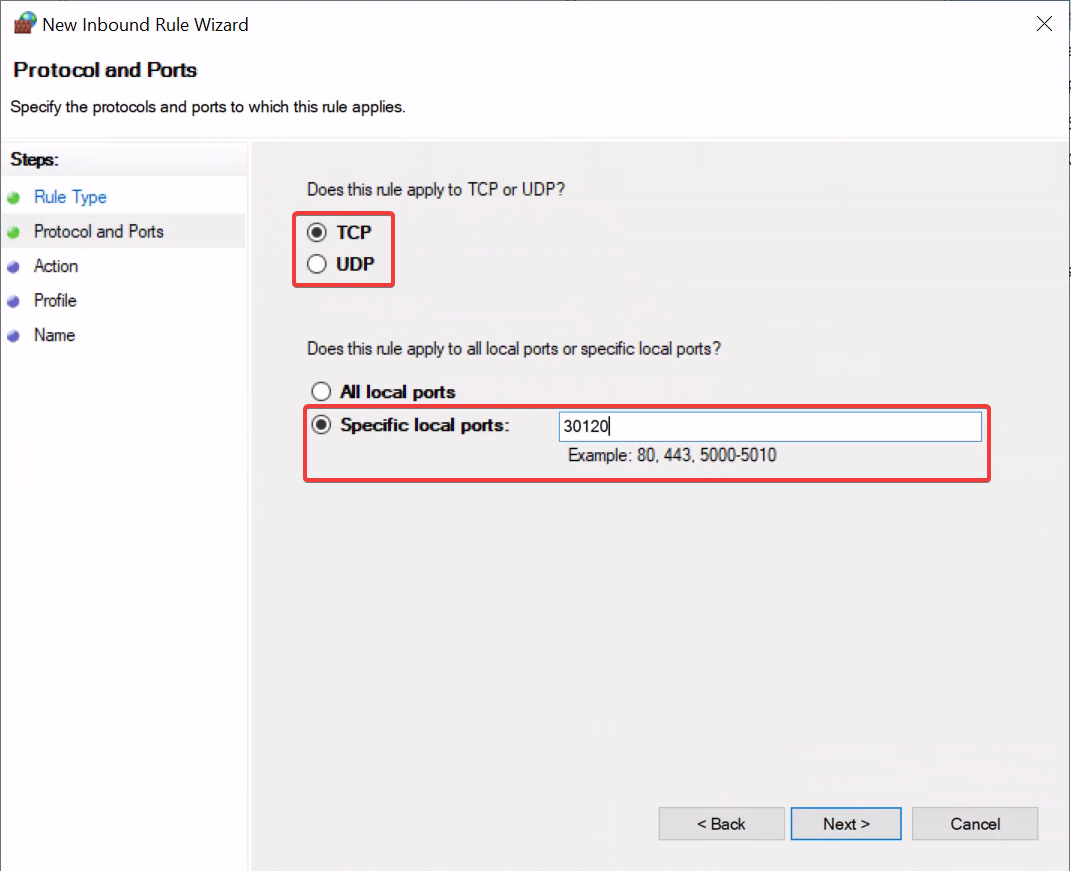 Listed here are some common ports for game applications:
| Game / Platform | Port(s) | Protocol | Notes / Purpose |
|---|---|---|---|
| Minecraft (Java Edition) | 25565 | TCP / UDP | Default port for Java server connections. |
| Minecraft (Bedrock) | 19132, 19133 | UDP | 19132 for IPv4, 19133 for IPv6. |
| FiveM (GTA V) | 30120 | TCP / UDP | Default server port. |
| txAdmin (FiveM) | 40120 | TCP | Used for the txAdmin web interface. |
| Source Engine Games | 27015 | TCP / UDP | Standard for CS:GO, CS2, TF2, Garry's Mod, L4D2. |
| Rust | 28015, 28016 | TCP / UDP | 28015 for game; 28016 for RCON. |
| Palworld | 8211, 27015 | UDP | 8211 for game connection, 27015 for Steam Query. |
| ARK: Survival Evolved/Ascended | 7777, 7778, 27015 | UDP | 7777/7778 for game traffic, 27015 for Steam Query. |
| Valheim | 2456, 2457, 2458 | UDP | 2456 for server, 2457 for Steam Query. |
| Terraria | 7777 | TCP | Default game port. |
Once you've entered the port and protocol that you need click Next
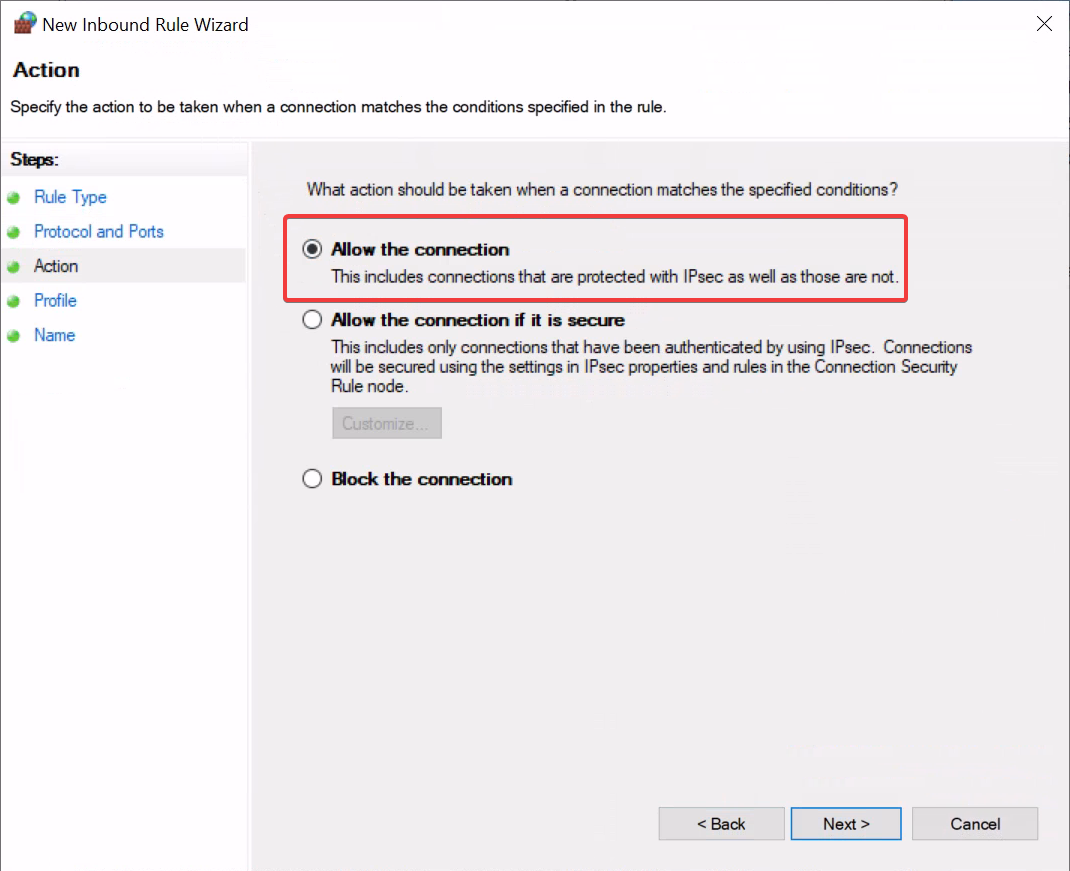
Click Allow the connection
Ensure that Allow the connection is selected and click Next
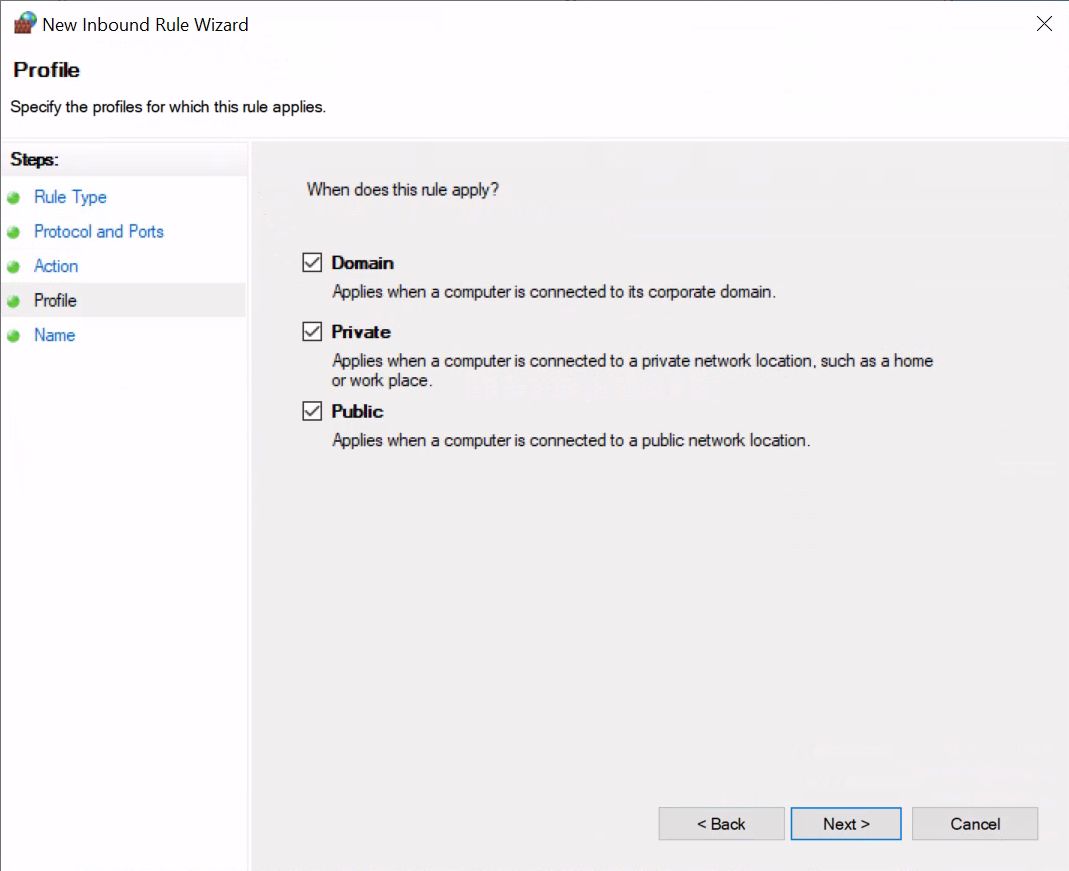
Ensure all boxes are ticked
Make sure that Domain, Private and Public are checked and then click Next
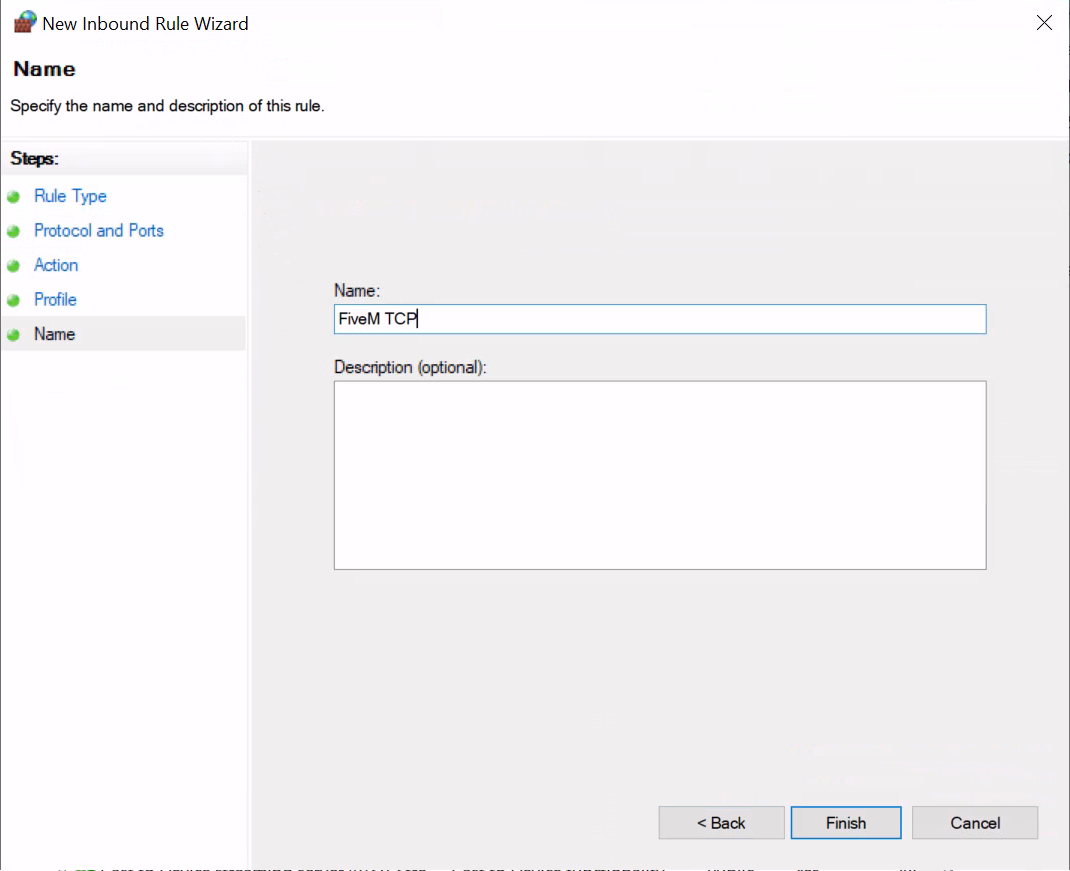
Name your rule
The final step in this process is to name your profile, you can name it anything your heart desires. For the purpose of this guide I'm going to be naming the profile FiveM TCP.
Testing your rules
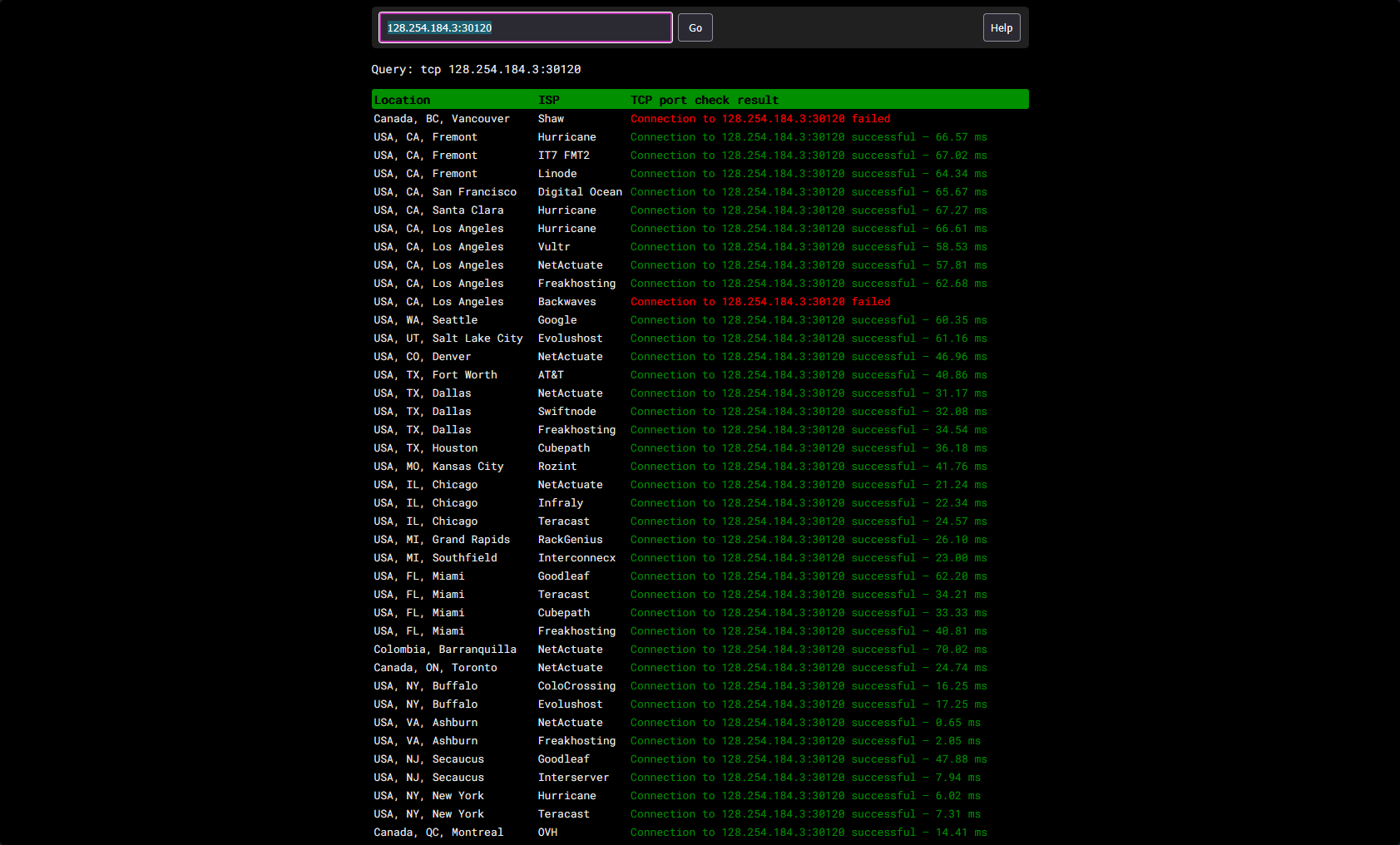
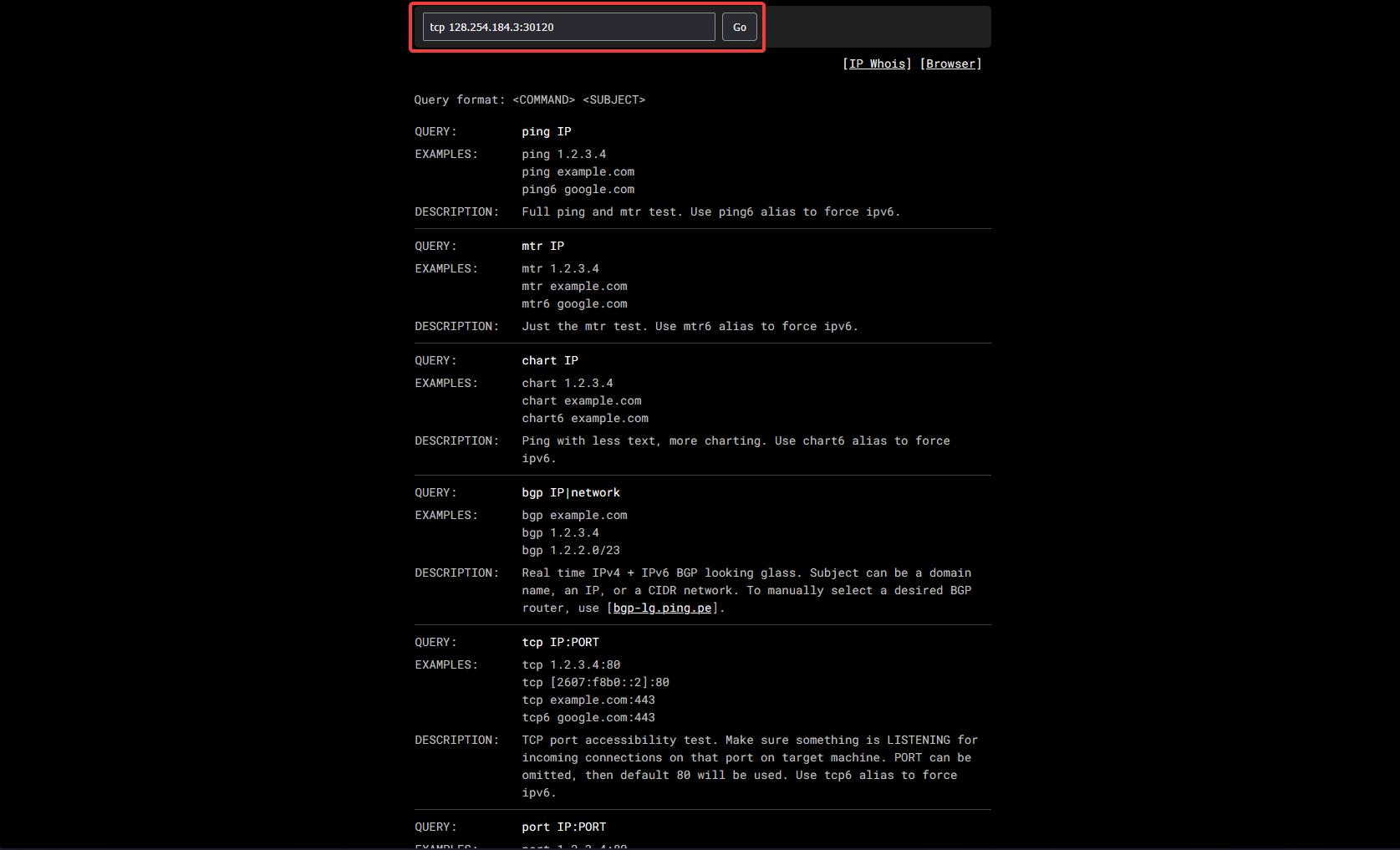
Once you've opened the ports you can test your rules by connecting to your application or if you want to check if your ports are open you can use ping.pe to check if your TCP ports are open.
On ping.pe enter the following command in the search bar tcp ip:port then click Go. Ex: tcp 128.254.184.3:30120
All done!
If your application is running on your VPS and you properly port forwarded you should see the following after running a test on ping.pe